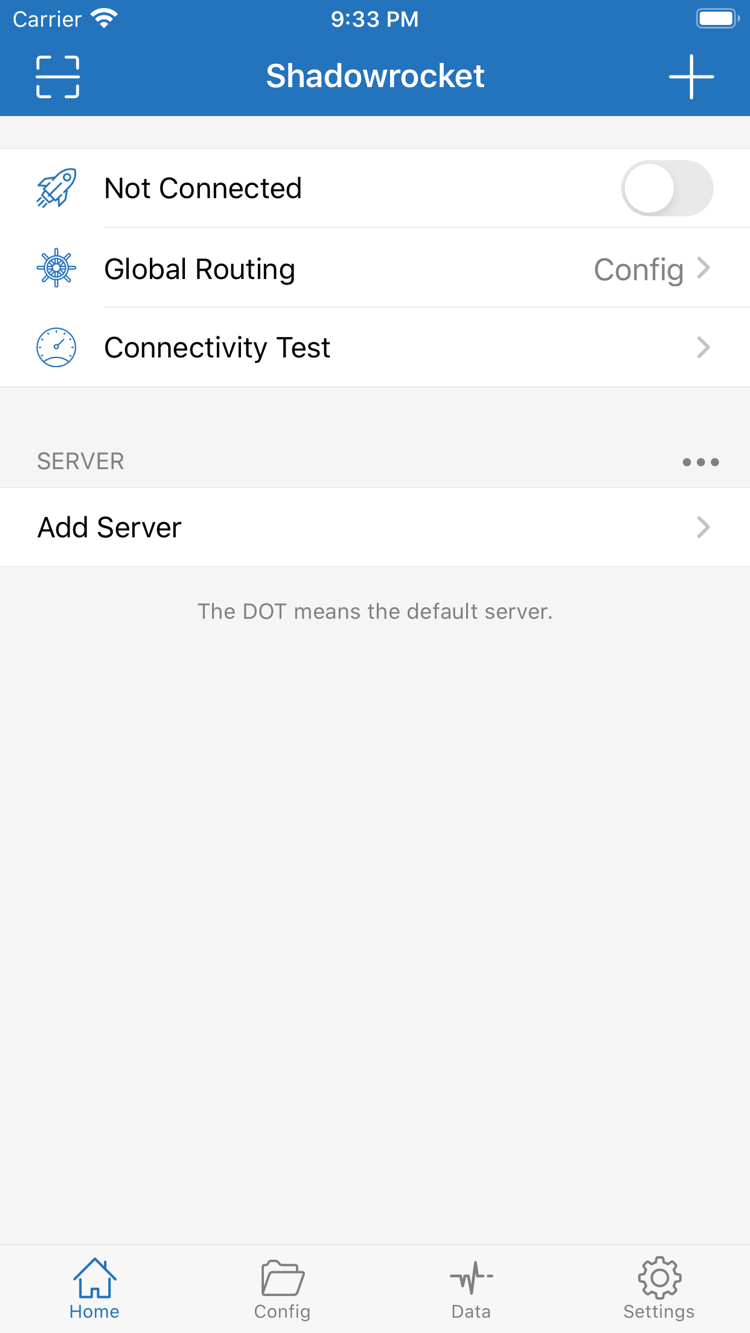
Shadowrocket is a rule-based proxy client for multiple platforms with rule-based routing. iPhone and iPad: $2.99 one-time purchase on the App Store; Mac, Windows, Android, and Linux: free.
Check your device first, then choose how to get Shadowrocket. iPhone and iPad: $2.99 one-time purchase on the App Store; Mac, Windows, Android, and Linux: free. Installers are available from this site’s download page under /dl/shadowrocket/.
iPhone / iPad
$2.99 one-time on the App Store · Free on other platforms
Get Shadowrocket from its App Store product page. Check the system requirements listed there. iPhone and iPad share a purchase record. Before downloading, verify your current store region and purchasing account; don’t mistake a similarly named search result for Shadowrocket.
The download page has separate DMG downloads for Apple Silicon and Intel. Open About This Mac and check the chip or processor listed; don’t choose based on the computer’s appearance. If macOS blocks the first launch, follow the Privacy & Security instructions on the download page.
Use the 64-bit EXE installer from the download page. Once you’ve confirmed the file is from this site, if SmartScreen appears, select More info and then Run anyway. If your device is managed by an organization, follow your administrator’s installation requirements.
Choose the APK for your arm64 device. If installation is blocked because of the app’s source, allow installation from unknown apps only for the browser or file manager you used to download it, then revoke that permission afterward. If an in-app browser can’t download the file, use your system browser instead.
Choose deb or rpm according to your distribution’s package manager. For a standalone format, use AppImage. Before running an AppImage for the first time, grant it execute permission. The download page has the required commands and dependency notes; don’t mix installation steps for different formats.
What connections, rules, and configuration each handle
Server details determine where to connect. Global Routing determines how traffic is handled, while rules in Config determine which requests use a proxy. Understand these separate roles before changing Settings. Available options and where to find them vary by platform; check the app’s interface.
Match a condition, then apply an action
View and edit Rule in Config, using conditions such as DOMAIN-SUFFIX, GEOIP, and IP-CIDR to define which requests match. Rules are generally evaluated in order, so place specific conditions before broader ones. FINAL provides a fallback. When Global Routing is set to Config, requests follow the configuration’s rules; Proxy and Direct apply different handling to traffic. To troubleshoot routing, check the mode first, then identify the matching rule. Changing a server alone won’t help if the request is taking a different route than expected.
Connect based on network conditions
On Demand can trigger connections based on network conditions; see the related options in Settings. First connect manually and confirm the current configuration works, then consider setting different conditions for Wi-Fi and cellular networks. On Demand controls when a connection starts; it doesn’t replace request routing in Config or fix invalid server details. If the connection keeps restarting after you disconnect, check On Demand and your system’s VPN settings, confirm the trigger conditions, then adjust them. There’s no need to repeatedly delete servers.
Choose Type to match your service details
Shadowrocket supports protocols including Shadowsocks, VMess, VLESS, Trojan, Hysteria2, and WireGuard. In Add Server, choose the Type that matches your service details, then enter the address, port, and required authentication parameters. Required fields vary by protocol. A protocol name alone isn’t enough: check the transport, TLS settings, and server name as well. Compatibility also depends on the server and network conditions, so the protocol name alone doesn’t predict speed or availability.
Import your existing Subscribe
Use your own subscription or server details. In Add Server, choose Subscribe and enter the subscription URL. A subscription imports and updates a server list; it’s not the same as a configuration file with routing rules. After saving, check the groups and entries, then select a server to test. If updating fails, check that the URL is complete and hasn’t expired, and that your network can reach it. A full URL may contain access credentials, so hide sensitive parts before sharing screenshots, logs, or support requests.
Maintain Config by section
Config organizes global behavior, rules, and local mappings in configuration files. [General] and [Rule] serve different purposes. Save a working copy before editing, and change one type of option at a time. After importing a remote configuration, confirm which file is selected and check the Global Routing mode. iCloud can sync data between devices that support the feature; first check the sync scope and account status. Keep a separate backup of important configurations—sync isn’t version history.
Distinguish tests, DNS lookups, and real requests
Connectivity Test, Diagnostics in Settings, and logs offer different troubleshooting clues. A test result reflects only the response to that particular test; it doesn’t prove that every website will load. Data shows traffic statistics, not your service provider’s billing records. When a connection fails, note the test method, time, and error, then check server details, DNS, and the matching rule in turn. Before exporting logs, remove subscription URLs, authentication fields, and access history you don’t need to share.
This is the official Shadowrocket website and manual. Shadowrocket is a closed-source commercial app. Getting the client, importing your own service details, and choosing how to handle requests are three separate steps. The information below helps distinguish an App Store purchase, an installation file, and the service used for connections.
Two ways to get Shadowrocket
Developer: Shadow Launch Technology Limited
App ID: 932747118
App Store availability and account region
Install Shadowrocket on iPhone or iPad from its App Store product page. The app isn’t available on the mainland China App Store. If it doesn’t appear in search, first check the region of the account used for Media & Purchases; search results alone don’t indicate whether the app supports your device. Check the system requirements on the App Store page, and confirm your device can install the listed app before buying.
Your account region and device language are separate settings. Changing the system language won’t change your App Store region. To change your region, follow the process in your account settings and first review the requirements for your balance, active subscriptions, and payment method. If you see a region or payment prompt, resolve the account requirements; deleting the app won’t fix an App Store issue.
Pricing and purchase records
The iPhone / iPad app costs $2.99 as a one-time purchase on the US App Store; other storefronts show local currency. The Mac, Windows, Android, and Linux versions are free. iPhone and iPad share a purchase record. When switching devices or reinstalling, use the original purchasing account to find Shadowrocket in your purchased items instead of repeating the process from a new search result.
The purchase record must match the account currently signed in. If the product page shows a price again, check the account used for App Store purchases, its region, and your purchased items—not just your iCloud account. For computers and Android devices, download the installer for your device architecture from this site. Installation formats differ by platform; files with similar names aren’t interchangeable.
Prepare your details before connecting
First identify what you have: a subscription URL imports multiple servers, individual server parameters are entered in Add Server, and a configuration file may contain rules and global options. These serve different purposes. Entering a subscription URL in the wrong place, or treating a rules file as server details, can result in a successful save without a working connection.
When entering details manually, check Type, Host, Port, and the authentication fields required by the protocol. After using Scan QR Code, review the recognized details; a successful scan doesn’t guarantee valid connection parameters. Before using Import from Cloud JSON, verify the source and contents, then check which fields need to be added.
After turning on the connection, make a real request to verify it. First confirm that system VPN authorization is complete, then test a destination you’re authorized to access. If only some requests fail, note the destination and time to distinguish a server connection failure, a DNS lookup issue, or unexpected rule handling. Change one condition at a time so you can tell whether it affected the result.
Choosing Config, Proxy, or Direct
In Global Routing, Config handles requests according to the rules in the current configuration file; Proxy routes applicable traffic through the selected proxy; Direct handles traffic without a proxy. For routing traffic differently by domain or address, start with a suitable Config and check the rule order. Proxy isn’t a universal fix for every problem.
The rule DOMAIN-SUFFIX,example.com,PROXY sends requests matching that domain suffix to the PROXY action. example.com is just a syntax example, not a server address or a connection service. A rule keyword, match value, and action are separate parts. Before changing an action, confirm that the referenced policy exists in your configuration.
If a request isn’t handled as expected, first check whether Global Routing is set to Config and whether the correct file is selected, then review the matching conditions. A broad rule near the top can prevent a more specific rule below it from matching. FINAL should provide the last-resort fallback. Verify rule behavior and server connectivity separately; a latency test alone can’t show that a rule is working.
Installation permissions, updates, and configuration backups
Installers for Mac, Windows, Android, and Linux are available from this site under /dl/. If the system blocks the first launch, confirm the file’s source and follow the download page instructions: on Mac, check Open Anyway under Privacy & Security; on Windows, select More info in SmartScreen; on Android, grant permission only to the source you used to install the app; on Linux, install the package or grant execute permission. Don’t disable system protection entirely just to install the app.
Manage iPhone / iPad app updates through the App Store; download installers for other platforms from this site. Before updating, save your current configuration and note your selected server and any essential custom settings. App updates, subscription updates, and remote rule updates are separate operations. An app update won’t fix an expired subscription or incorrect parameters, and it doesn’t guarantee that your rules still meet your needs.
Understand each Settings option according to its purpose. DNS affects name resolution; On Demand controls connection triggers; Test Method changes what test results mean; Proxy options relate to local proxy use. If you’re unsure what an option does, keep the current working setting, read its documentation, and then adjust it for your network. This manual doesn’t present unverified values as universal defaults.
Start with the principle behind the problem. First identify whether you’re dealing with configuration structure, matching conditions, or a DNS issue, then follow the checks in the article. Examples explain syntax; they don’t replace your own server details.
Learn the matching scope, syntax, and order of six commonly used rule keywords, with examples combining PROXY / DIRECT / REJECT. Understand the conditions before choosing an action; a rule name isn’t the same as its result.
DNS is one thing to check when server latency looks normal but websites won’t load. This guide separates test responses, DNS lookups, and actual access, and shows how to narrow down the cause from error details instead of changing every DNS option at once.
Learn what each section of a .conf file does: [General] controls global behavior, [Rule] handles routing, [Host] defines local mappings, and [URL Rewrite] modifies requests. Understand each section’s scope and save a recoverable copy before editing.